 Telegram
 WhatsApp
 Discord
 ask@voicehotkey.com
 Download for Windows


Uninstall VoiceHotKey
If you prefer not to use VoiceHotKey application, you can simply uninstall it from your computer. On Windows, uninstall it as you would any other Windows program; on macOS, quit it and move it to the Trash; on Linux, run the script shown below.
Uninstall on Windows#
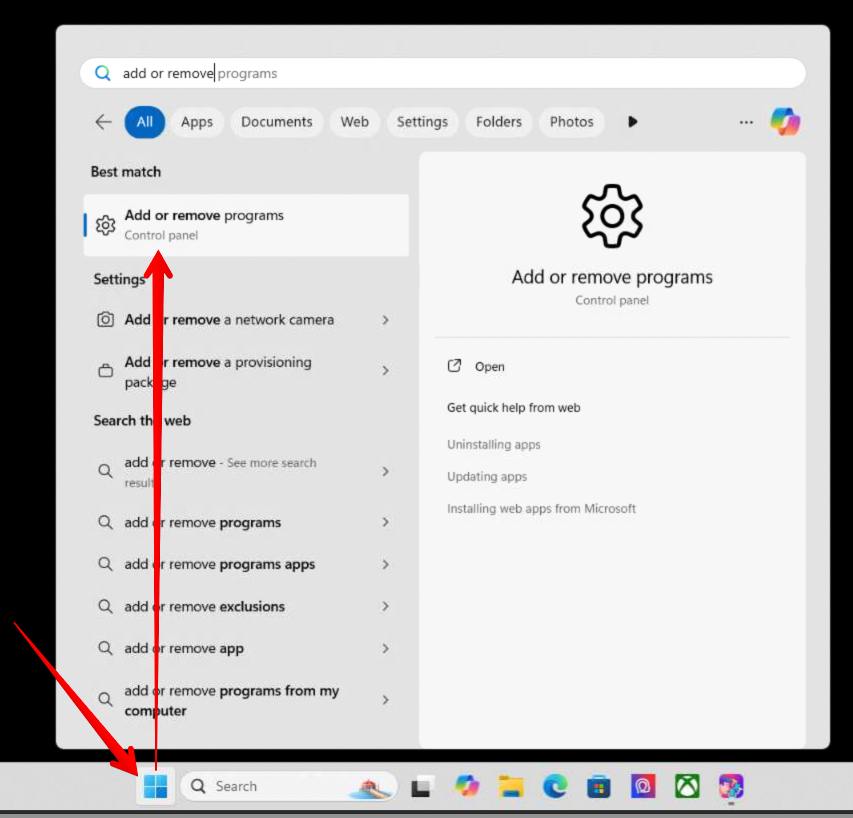
Open Add or remove programs menu#
Open Windows menu and find Add or remove programs from Control Panel.
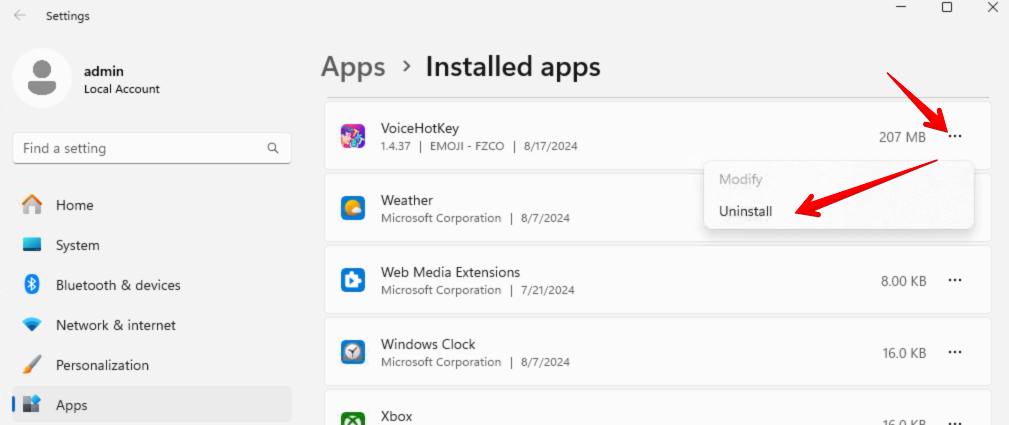
Uninstall VoiceHotKey#
Find VoiceHotKey app, press … menu and selet Uninstall
Uninstall on macOS#
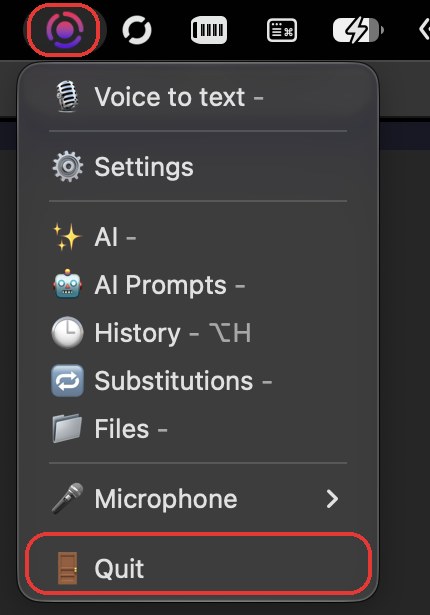
Quit VoiceHotKey#
Click the VoiceHotKey icon in the menu bar and click Quit.
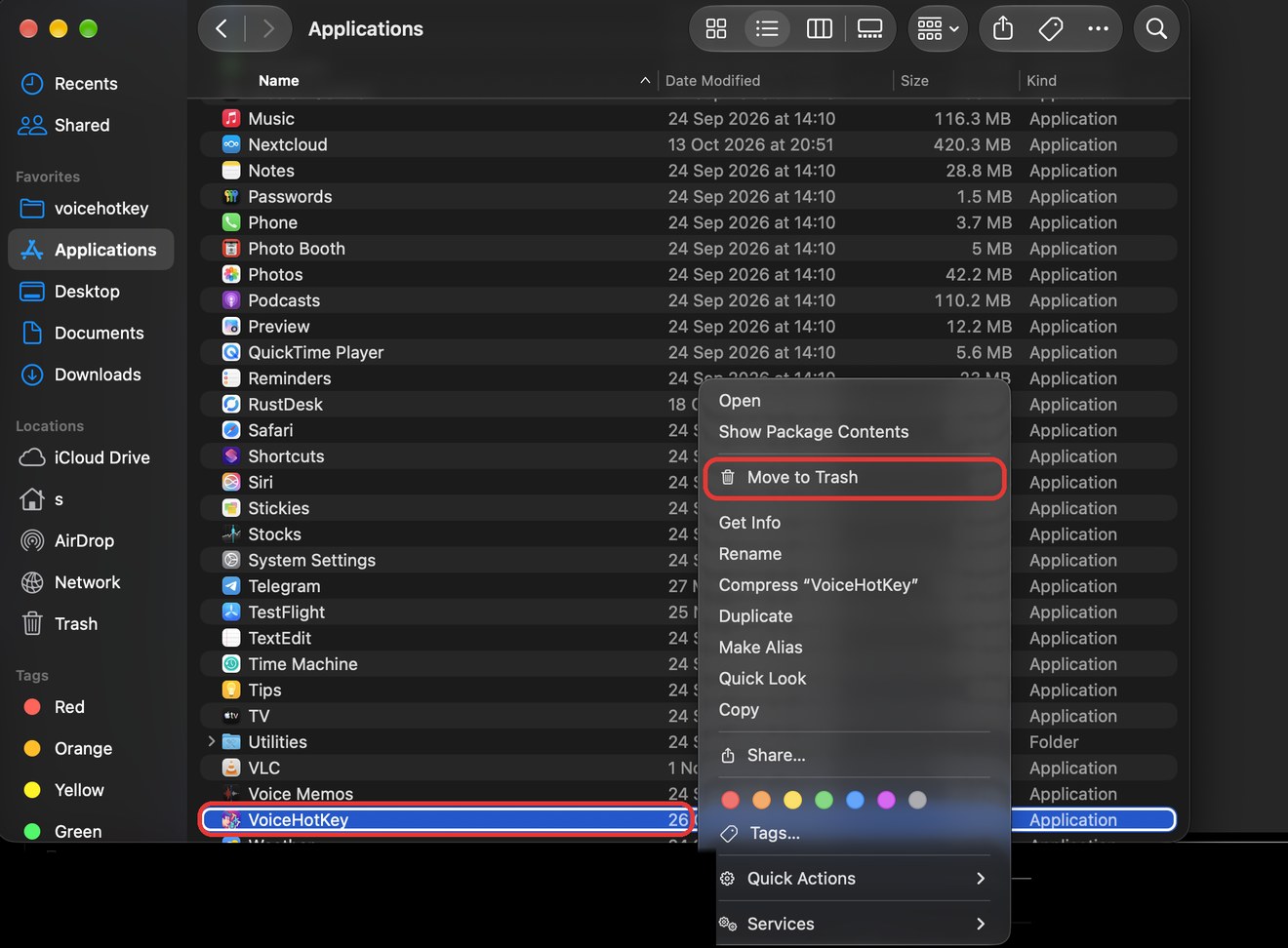
Move VoiceHotKey to Trash#
Open Finder → Applications, right-click VoiceHotKey and click Move to Trash, then empty the Trash. While VoiceHotKey is running, macOS won’t move it to the Trash — that’s why you quit it first. After the app is deleted, VoiceHotKey no longer starts when you log in.
Uninstall on Linux#
Run one command in a terminal:
curl -fsSL https://app.voicehotkey.com/releases/ubuntu/uninstall.sh | bash
The script stops VoiceKey and removes its binary, menu entry, icons, autostart entry, settings, dictation history and logs, and also cleans up the input group membership and the udev rule the installer added (log out and back in when it says so). To keep your settings for a later reinstall, add --keep-config
curl -fsSL https://app.voicehotkey.com/releases/ubuntu/uninstall.sh | bash -s -- --keep-config
To reinstall VoiceKey:
curl -fsSL https://app.voicehotkey.com/releases/ubuntu/install.sh | bash


